Table of Contents
If you’re new to mechanical keyboards, the world of “switches” can feel overwhelming. Reds, browns, blues, actuation points, gram weights, bottoming out — it’s a wall of jargon for what is, underneath, a simple choice about how a key should feel and sound. Let’s clear it up.
What a switch actually is
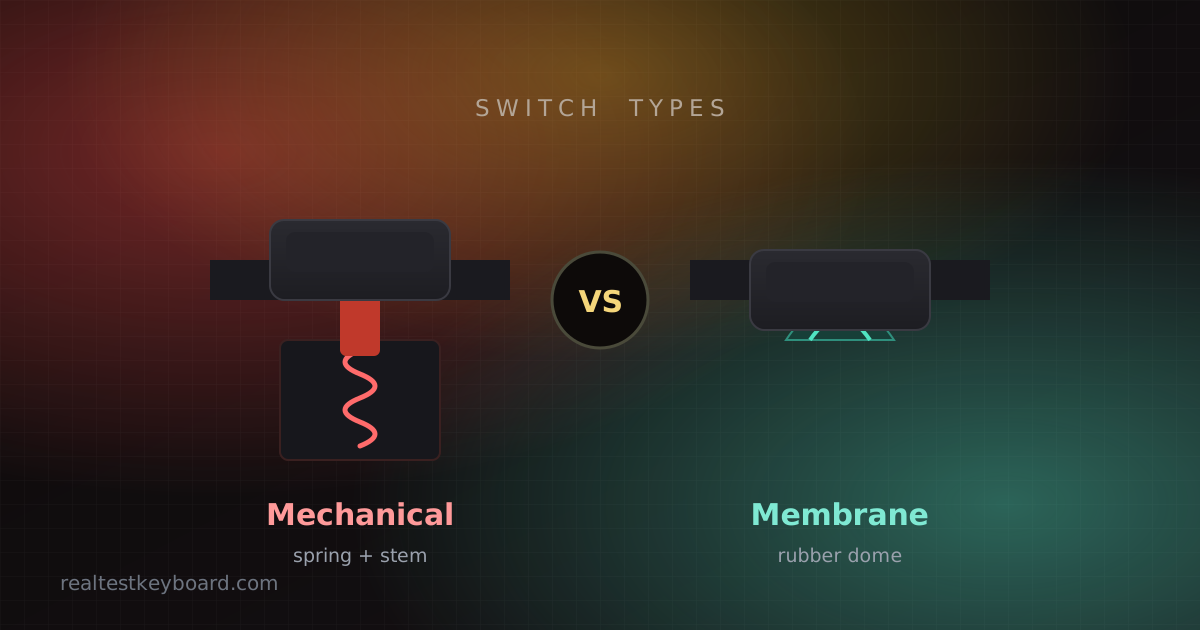
Under every keycap on a mechanical keyboard sits an individual spring-loaded switch that registers each press on its own. That’s the whole difference from a membrane keyboard, which stretches one rubber sheet under all the keys — a topic we dig into in mechanical vs membrane. Discrete switches give a crisper, more consistent feel and last far longer.
Two terms come up constantly:
- Actuation point — how far down you press before the key registers, usually around 2 mm.
- Bottoming out — pressing the key all the way to the base.
The three switch families
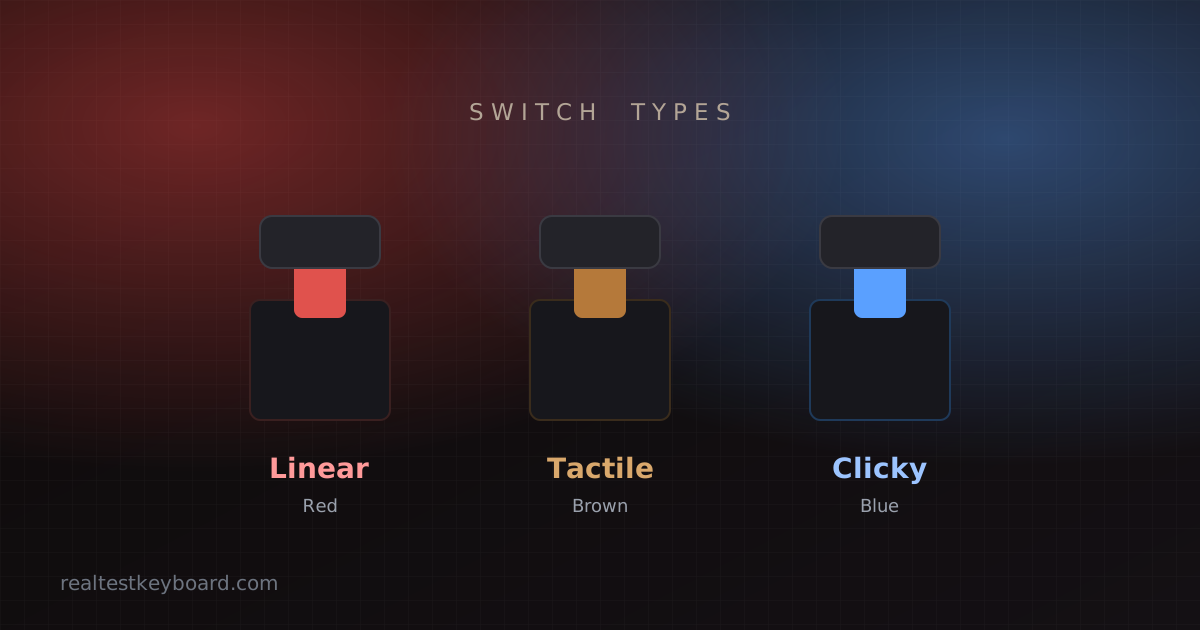
Almost every switch you’ll meet is a variation on one of three types.
Linear
Linear switches glide straight down — smooth and consistent, no bump, no click. They’re quiet and fast, which is why they dominate gaming, where rapid repeated presses matter. Red and black are the classic linears (black being heavier).
Tactile
Tactile switches give a small bump you feel right at the actuation point, so you know the press landed without needing to bottom out. No loud click, just feedback. Brown is the best-known tactile switch and the usual “I do a bit of everything” pick.
Clicky
Clicky switches add an audible click on top of the tactile bump. They’re the most satisfying and give the clearest feedback of any type — but they’re loud, which rules them out for shared offices and late nights. Blue is the iconic clicky switch.
How heavy is the switch? Spring weight matters too
Color tells you the feel; the spring tells you the effort. Switch weight is measured in grams-force at actuation — lighter springs (around 45 g) feel fast and effortless but are easier to press by accident, while heavier ones (60 g and up) feel deliberate and reduce typos at the cost of a little more fatigue over a long session. If your fingers ache after hours of typing, a lighter switch often helps more than any wrist gadget.
Silent and “speed” variants
Beyond the classic colors, two variants are worth knowing about. Silent switches add dampening pads that soften the sound on both the down-press and the release — ideal if you share a room or take a lot of calls. Speed switches raise the actuation point (closer to 1.2 mm), so keys register with a shorter press; gamers like them, though the shallow trigger takes some getting used to and can cause accidental inputs while you adjust.
Which switch should you choose?
There’s no single right answer, but a few rules of thumb hold up:
- Gaming → linear (red or a speed variant) for fast, quiet repeats.
- Typing all day → tactile (brown) for feedback without the noise.
- You just love the sound → clicky (blue), if the people around you won’t mind.
- Shared or quiet space → linear or tactile, and look at silent variants.
The honest best way to decide is to feel them. A switch tester — a little board holding a handful of different switches — costs very little and saves you from committing to a full keyboard you end up disliking.
Hot-swap: change your mind later
Many modern boards are hot-swappable, meaning switches pull out and push in without soldering. For a beginner this is a gift: start with one type, live with it for a few weeks, and change course if it isn’t for you — or replace a single worn switch instead of the whole keyboard.
Test your switches when they arrive
New board or freshly re-switched, confirm every switch works before you rely on it. Run a quick keyboard test: press each key, watch it register, and check the per-key counter and chatter detection. A worn or poorly-seated switch shows up immediately — far better to catch it on day one than mid-game a month later. And if a switch does start double-firing down the line, our guide to fixing a chattering key has you covered.
Test every key directly in your browser
Detect stuck keys, key chatter, input latency, and full rollover with our instant, zero-download diagnostic tool.
Start Keyboard Test →