Table of Contents
Few things are more distracting than a key that misbehaves. Maybe it sticks down, maybe it types twice from a single tap, or maybe it fires on its own while you’re reading. Before you write off the whole keyboard, know this: most of these faults come down to dirt or a worn switch, and both are often fixable at your own desk in a few minutes.
This guide walks through the three faults you’re most likely to hit — stuck, chattering, and dead keys — plus a bit of the why, because understanding what’s actually happening under the keycap makes the fix obvious.
First, confirm exactly what’s wrong
Guessing wastes time. Start by running a keyboard test so you know which key is affected and how it’s failing:
- Stuck key — registers as held down, or keeps repeating on its own.
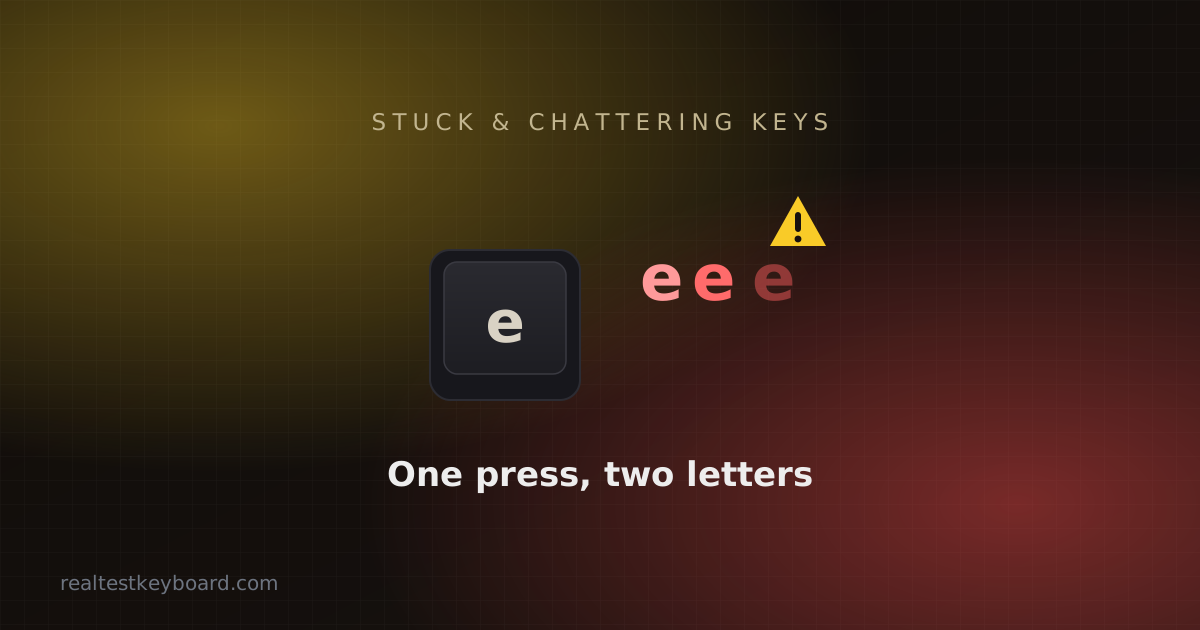
- Chatter / double-fire — one press produces two or more characters.
- Dead key — nothing registers at all.
The tester flags chatter automatically when a key re-fires within about 40 milliseconds of release, and the per-key counter tells you whether a single tap registered once or three times. Get this straight before you pick up a tool — the repair is different for each.
Why a key chatters in the first place
Inside every switch, two metal contacts touch to complete a circuit. They don’t meet cleanly; they physically bounce apart and back together for a few milliseconds, and firmware “debounces” that bounce so it counts as one press. As a switch ages — or when dust or oxidation coats the contacts — the bounce gets longer and messier than the firmware expects, and a single press slips through as two. That’s chatter. Knowing this tells you the two levers you can pull: clean the contacts, or give the firmware more room to debounce.
Fixing a stuck key
A stuck key almost always means something is physically blocking the switch or keycap.
- Power down or unplug the keyboard.
- Remove the keycap — pry it straight up with a keycap puller or a flat plastic tool. Wiggle gently; don’t yank at an angle.
- Look for debris — crumbs, hair, grit — around and under the switch.
- Blow it out with compressed air, then wipe the area with a barely-damp cotton swab and a little isopropyl alcohol.
- Let it dry, reseat the keycap, and test again.
Fixing a chattering key
Chatter is trickier because the switch itself may be wearing out. Work from easiest to hardest:
- Clean the switch. Contact cleaner or isopropyl alcohol flushed into the switch, worked in with a few dozen presses, clears the oxidation that causes most chatter. This alone fixes a surprising number of cases.
- Raise the debounce time in firmware. If your keyboard runs QMK/VIA or similar custom firmware, bumping the debounce a few milliseconds masks a marginal switch. It’s a legitimate stopgap, though a truly worn switch will eventually need replacing.
- Swap the switch if your board is hot-swappable — pull the faulty one, drop in a new one, no soldering.
- Desolder and replace on a soldered board, if you’re comfortable with an iron.
After any repair, run the tester again and hit the key 15–20 times to confirm the chatter is truly gone rather than just hiding.
Fixing a dead key
A dead key is either a connection problem or a failed switch:
- Reseat the switch and keycap, and check for bent pins on hot-swap boards — a folded pin is a common, easily-missed cause.
- Test a different cable and USB port to rule out the connection.
- Try the keyboard on another computer. If the key works there, the problem is software or a driver, not the hardware.
When to repair and when to replace
If you’ve cleaned, reseated, and still see the fault — and the switch isn’t swappable — a repair may cost more time than the board is worth. Membrane and budget laptop keyboards in particular are usually cheaper to replace than to fix. A hot-swap mechanical board is the opposite: a single replacement switch costs almost nothing and takes a minute to install, so there’s rarely a reason not to fix it.
Stopping it happening again
Nearly every key fault traces back to dust and debris. A quick blast of compressed air every few weeks and a rule against eating over the keyboard prevents most stuck and chattering keys before they start. When you do sit down for a proper clean, our keyboard cleaning guide covers doing it safely without wrecking a switch — and once you’re done, a quick test confirms every key came back to life.
Test every key directly in your browser
Detect stuck keys, key chatter, input latency, and full rollover with our instant, zero-download diagnostic tool.
Start Keyboard Test →