Table of Contents
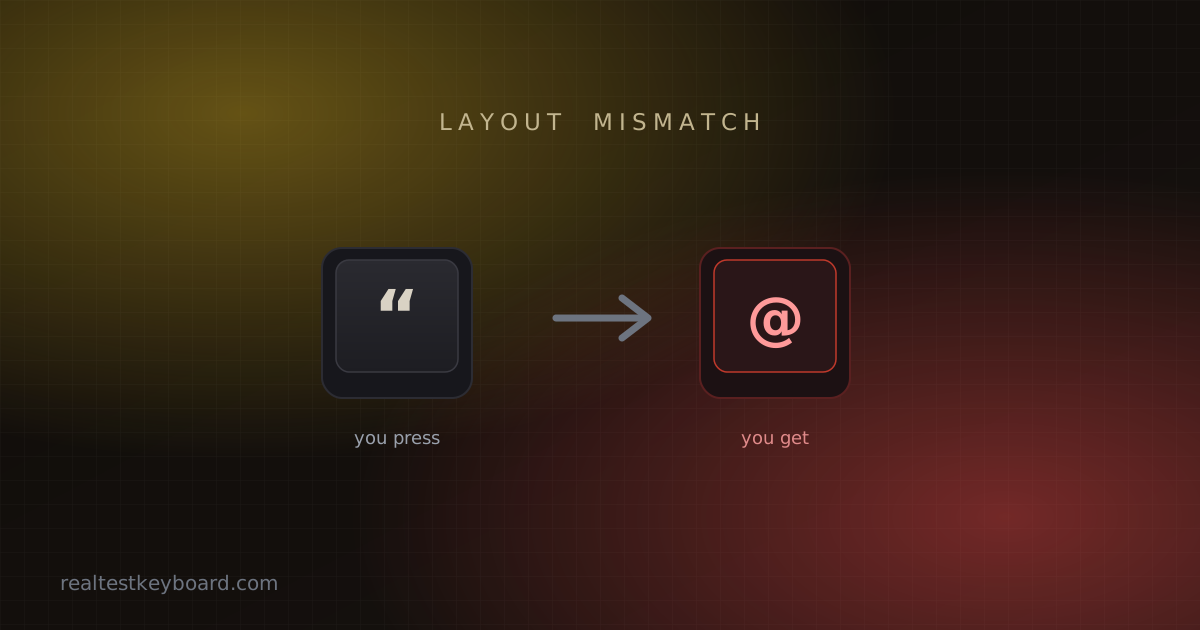
The classic version goes like this: you press the double-quote key to type
"hello" and get @hello@ instead. Or the pound sign gives you a dollar, or the
@ and " have swapped places entirely. Your first thought is that the keyboard
is broken — but if whole keys are producing the wrong character rather than no
character, the hardware is almost certainly fine. Something in software is
translating your presses through the wrong map.
Let’s walk through the usual suspects, roughly in order of how often they’re to blame.
The keyboard layout doesn’t match the keyboard
This is the number-one cause, and that @/" swap is its calling card — it’s
the tell-tale sign of a US layout being applied to a UK keyboard, or the reverse.
The computer decides what each physical key means based on the selected input
language, and if that setting doesn’t match the keyboard in front of you, the
legends printed on the keys stop matching what appears on screen.
On Windows, press Win + Space to cycle through installed layouts, or open Settings → Time & Language → Language & region and remove the layouts you don’t want. On macOS, go to System Settings → Keyboard → Text Input and check your input sources; the little flag in the menu bar shows which one is active. Pick the layout that actually matches your hardware (British PC keyboard → English UK, and so on) and the characters snap back into place.
Num Lock is on (the laptop special)
If part of your keyboard suddenly types numbers where letters should be — pressing
u, i, o and getting 4, 5, 6 — you’ve hit an embedded number pad. Many
compact laptops overlay a numeric keypad onto the right-hand letters, toggled by
Num Lock (often Fn + NumLk or Fn + a function key). Press that combo again
to turn it off and your letters return. It’s a five-second fix that has fooled a
lot of people into thinking half their keyboard died.
An accidental modifier is stuck on
A few settings quietly change what your keys do. Fn Lock can invert the
function row so F-keys trigger media controls instead of F1–F12. AltGr (the
right Alt key on many layouts) is a legitimate modifier for typing symbols like
€ or @, but a sticky or stuck AltGr makes ordinary keys produce odd
characters. And accessibility features like Sticky Keys can leave a modifier
“held” after you’ve let go. If things went strange right after a flurry of
keypresses, try tapping each modifier once and check whether Sticky Keys is
enabled.
Software is rewriting your input
Autocorrect and text-replacement features can make a perfectly healthy keyboard look possessed — straight quotes becoming curly ones, or a short abbreviation expanding into a phrase. If the “wrong” character only appears in one app (a word processor, say) but is correct in a plain text box, the app’s autocorrect is the culprit, not the keyboard. The same goes for any remapping tool you’ve installed and forgotten about.
A quick way to confirm a layout problem
If you suspect the layout but want to be sure, open your operating system’s
on-screen keyboard — search for it in the Start menu on Windows, or turn on
the Keyboard Viewer on macOS. It shows the layout the computer is currently
using. Press a few keys and compare what it highlights and prints against the
legends on your physical keys. If they disagree — you press the key labelled "
and the on-screen keyboard lights up @ — you’ve confirmed a mismatch, and
switching the input language will put everything right.
How to tell if it’s genuinely the hardware
Here’s the clean test that separates software from hardware. If one specific key produces the wrong character in every application — Notepad, the browser address bar, a login box — regardless of layout, then the key’s signal itself may be misread. Open the keyboard tester and press the offending key. The event inspector shows the raw key code the browser receives. If a key reports a code that doesn’t match its label consistently everywhere, you’re likely dealing with a remap you didn’t intend rather than a layout issue — and you can set it right deliberately with our guide to remapping keyboard keys.
Genuine hardware faults usually show up as a missing or doubled character rather than a substituted one. If a key is dropping presses or firing twice instead of typing the wrong symbol, that’s a different problem — head over to fixing a stuck or chattering key instead.
Nine times out of ten, though, the answer is the layout setting. Match the software to the keyboard you’re actually holding, and the phantom characters disappear.
Test every key directly in your browser
Detect stuck keys, key chatter, input latency, and full rollover with our instant, zero-download diagnostic tool.
Start Keyboard Test →