Table of Contents
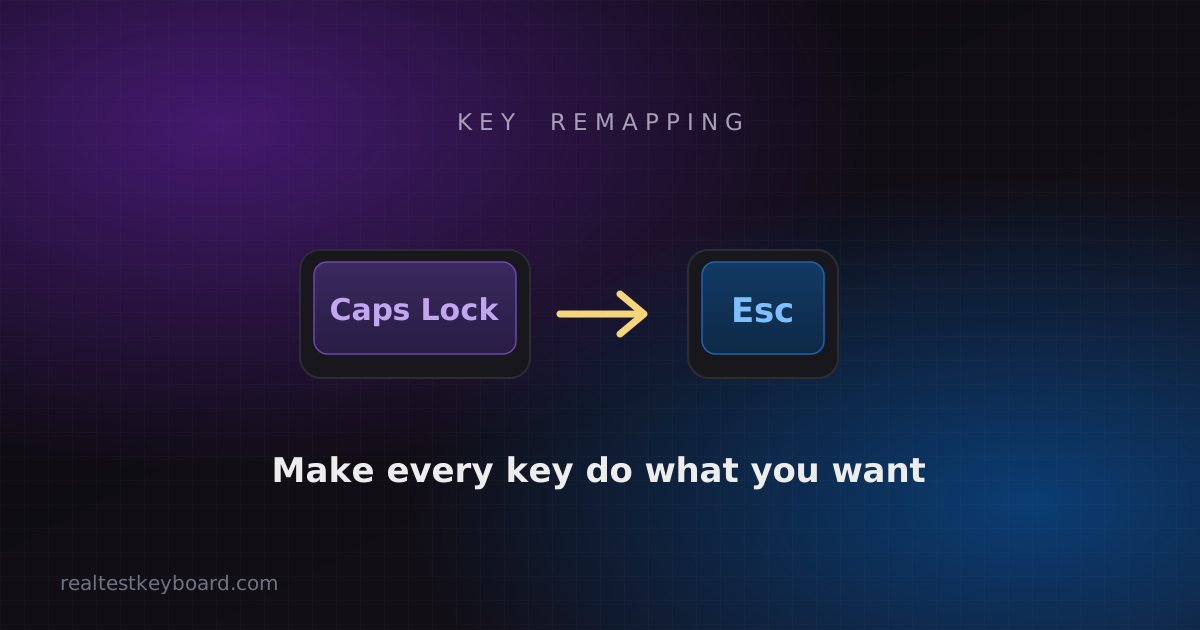
Caps Lock is prime real estate. It sits right on the home row under your strongest finger, and most people press it by accident more often than on purpose. Remapping it — to Escape, to Ctrl, to Backspace — is the gateway drug of keyboard customisation, and once you’ve done one useful remap you’ll wonder why you put up with the factory layout for so long.
Remapping is also a genuinely practical repair. If a key physically dies on a keyboard you can’t replace right away, you can move its function to a key you never use and keep working. Here’s how to do it properly on each platform, from the easy built-in tools to the ones that survive a reboot and follow the keyboard to any computer.
Windows: PowerToys is the easy answer
Microsoft’s own PowerToys includes a Keyboard Manager that handles remapping without touching the registry. Install PowerToys, open Keyboard Manager, and use “Remap a key” to point one key at another — Caps Lock → Escape, for instance. There’s also “Remap a shortcut” if you’d rather turn a combination into a different combination. The remaps apply while PowerToys is running, which for most people means always, since it starts with Windows.
If you want a remap baked in at a lower level — one that works even at the login screen, before any app loads — SharpKeys writes the change into the Windows registry. It’s a one-time edit that persists until you undo it, though you need to reboot for it to take effect. Use PowerToys for flexible, reversible tweaks and SharpKeys for a permanent “this key is now that key” decision.
Mac: start with the built-in settings
macOS can remap the modifier keys without any extra software. Open System Settings → Keyboard → Keyboard Shortcuts → Modifier Keys, pick your keyboard from the dropdown, and you can reassign Caps Lock, Control, Option, and Command to each other. That covers the most common request — turning Caps Lock into Control or Escape — in about thirty seconds.
For anything beyond modifiers, Karabiner-Elements is the free, powerful standard. It can remap any key, create complex rules (like making a key behave as Escape when tapped but Control when held), and target specific keyboards. It’s more setup than the built-in panel, but nothing else on the Mac matches what it can do.
Firmware remapping: the version that follows the keyboard
The tools above live on the computer, so your remaps vanish the moment you plug the keyboard into a different machine. If your keyboard supports QMK or VIA — many enthusiast and hot-swap boards do — you can store the remap in the keyboard’s own firmware instead. VIA in particular gives you a visual layout editor: click a key, choose what it should send, and the change is written to the board. From then on the keyboard carries its own layout to any computer, no software required. This is the cleanest option if you have hardware that supports it.
A few tips worth knowing
Keep a note of what you changed. A remap you set up months ago and forgot is a classic source of “why is this key typing the wrong thing?” confusion — the exact mystery we untangle in keyboard typing the wrong characters.
Watch out for one gaming gotcha: some games and anti-cheat systems read keyboard input at a low level and don’t see OS-based remaps from PowerToys or Karabiner, so a key you’ve remapped in software can behave differently in-game than it does on the desktop. If you need a remap to work absolutely everywhere, including inside games, do it in the keyboard’s firmware rather than the operating system.
When you rescue a dead key by moving its function elsewhere, pick a donor key you genuinely never use, like a right-hand Windows key or a menu key. And after any remap, confirm it actually took: open the keyboard tester and press the remapped key to check the right code now registers. It’s a two-second sanity check that saves you discovering the remap didn’t apply halfway through an email.
Once you’re comfortable moving keys around, it pairs naturally with learning the shortcuts worth committing to muscle memory — a keyboard shaped to your hands and a set of reflexes to match is a real upgrade over whatever the factory decided was normal.
Test every key directly in your browser
Detect stuck keys, key chatter, input latency, and full rollover with our instant, zero-download diagnostic tool.
Start Keyboard Test →