Table of Contents
Every time your hand drifts off the keyboard to grab the mouse, you pay a small tax. A second to reach, a second to aim, and a little mental cost each time you switch from typing to pointing and back. On its own it’s nothing. Spread across a full day of clicking through menus, it adds up to fifteen or twenty minutes of pure friction — and a lot of broken concentration.
The fix isn’t to memorise a hundred shortcuts. It’s to drill the right dozen until your fingers reach for them without being asked. Here are the ones that earn their keep, grouped by what they do. Windows shortcuts use Ctrl; on a Mac, swap in ⌘ Cmd unless I say otherwise.
The universal essentials
These work in almost every app on both platforms:
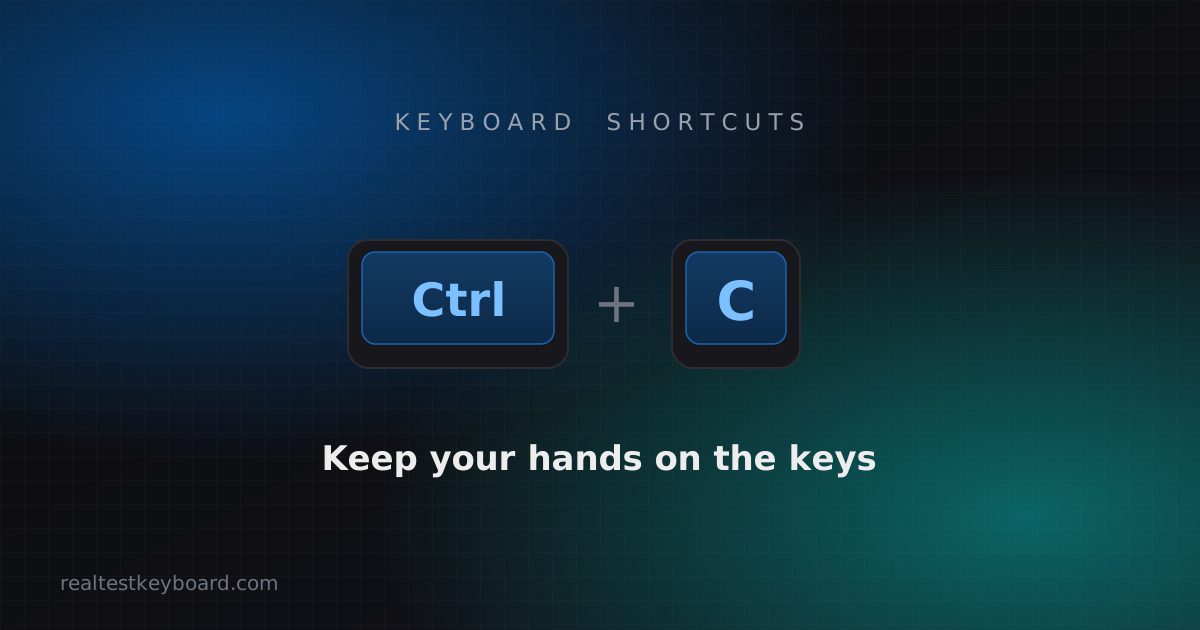
- Copy / Cut / Paste — Ctrl/⌘ + C, X, V
- Undo / Redo — Ctrl/⌘ + Z, and Ctrl + Y (Windows) or ⌘ + Shift + Z (Mac)
- Select all — Ctrl/⌘ + A
- Save — Ctrl/⌘ + S
- Find — Ctrl/⌘ + F
If you learn nothing else from this list, make it Undo and Redo. Once you trust them, mistakes stop being scary and you start experimenting more freely, which is where the real speed comes from.
Moving through text without the arrow keys
Editing is where shortcuts stop being a party trick and start saving serious time. Hold Ctrl (Windows) or Option (Mac) and press ← or → to jump a whole word at a time. Home and End snap you to the start or end of a line — on a Mac, use ⌘ + ← / →. Add Shift to any of those and you select the text as you move, so you can grab a word or a whole line and type right over it.
Two more feel like magic once they’re automatic, and they work in most text and code editors: move a line up or down with Alt + ↑/↓ (Option + ↑/↓ on Mac), and duplicate a line with Shift + Alt + ↓. Rearranging a list or a block of code without cut-and-paste gymnastics is a genuinely different experience.
Windows and app management
- Switch apps — Alt + Tab (Windows) · ⌘ + Tab (Mac)
- Close a window — Ctrl + W / ⌘ + W
- Quit an app — Alt + F4 (Windows) · ⌘ + Q (Mac)
- New tab / reopen closed tab — Ctrl/⌘ + T, and Ctrl/⌘ + Shift + T to bring back the one you closed by accident
Browser shortcuts worth knowing
- Focus the address bar — Ctrl/⌘ + L, then just start typing
- Jump to a numbered tab — Ctrl (or ⌘) + 1 through 9
- Zoom — Ctrl/⌘ + Plus / Minus, and Ctrl/⌘ + 0 to snap back to normal
The system shortcuts people forget
Modern operating systems hide some of the most useful shortcuts out of sight:
- Screenshot a region — Shift + Win + S (Windows) · ⌘ + Shift + 4 (Mac)
- Emoji and symbol picker — Win + . (period) · Ctrl + ⌘ + Space (Mac)
- Clipboard history — Win + V on Windows, which quietly remembers your last several copies
- Lock the screen — Win + L · ⌘ + Ctrl + Q
That clipboard-history one tends to surprise people the most. Once you know your last ten copies are still sitting there, you stop panicking every time you overwrite something you meant to keep.
How to make them stick
Don’t try to swallow the whole list at once — that’s the fast track to remembering none of them. Pick a single workflow you repeat constantly, like copy-pasting between two windows or editing a paragraph, and force yourself to do it keyboard-only for a week, even when it feels slower at first. When it goes automatic, add the next one. A sticky note on the edge of the monitor carries you through the awkward first few days; after that the habit carries itself.
When a shortcut fails, suspect the key — not the app
Here’s a frustration that disguises itself as a software bug: a shortcut that works most of the time but not always. Nine times out of ten the real culprit is a flaky modifier key — a Ctrl, Shift, Alt, or ⌘ that doesn’t register every press. If Ctrl + C copies four times out of five, the app isn’t broken; the key is. Before you reinstall anything, test your modifier keys. The event inspector shows exactly which keys and modifier states the browser sees, so you can confirm the hardware in seconds. If one is chattering or dead, our guide to fixing a stuck or chattering key covers the repair.
Shortcuts are one of the rare habits that compound. The dozen you drill this month, you’ll use tens of thousands of times over the years ahead — which makes the twenty minutes it takes to learn them some of the best-spent time at your desk.
Test every key directly in your browser
Detect stuck keys, key chatter, input latency, and full rollover with our instant, zero-download diagnostic tool.
Start Keyboard Test →