Table of Contents
A laptop keyboard is one of the hardest parts to replace and one of the easiest to overlook when you’re buying. There’s no swapping it for a spare — a repair usually means opening the whole machine, and on some models it means replacing the entire top case. That’s exactly why a careful keyboard check pays off before you hand over money for a used laptop, accept one back from repair, or unbox a refurbished unit.
Here’s a test you can run in about two minutes, plus the extras worth checking while the laptop is in front of you.
Why laptop keyboards deserve extra scrutiny
They’re expensive to fix, faults hide easily, and your window to complain is short. A seller may genuinely not have noticed that one key sticks or double-types — plenty of people use a laptop for months without ever pressing the far corners of the function row. And on a used-marketplace purchase you might have days, not weeks, to catch a problem and ask for a refund. A couple of minutes of testing up front is cheap insurance.
Before you start pressing keys
Make sure the machine is actually ready to be tested: it should be charged enough to stay on, booted fully into the operating system (not sitting at a login screen that swallows keystrokes), and connected to Wi-Fi if you want to use an online tester. If the seller’s laptop is wiped or won’t boot, that’s worth pausing on before you even get to the keyboard.
The two-minute check
Open the keyboard tester in the laptop’s browser before you commit — it runs entirely on the page, so there’s nothing to install on a machine you may not keep.
- Press every key and watch each one light up on screen. Work row by row so you don’t skip any.
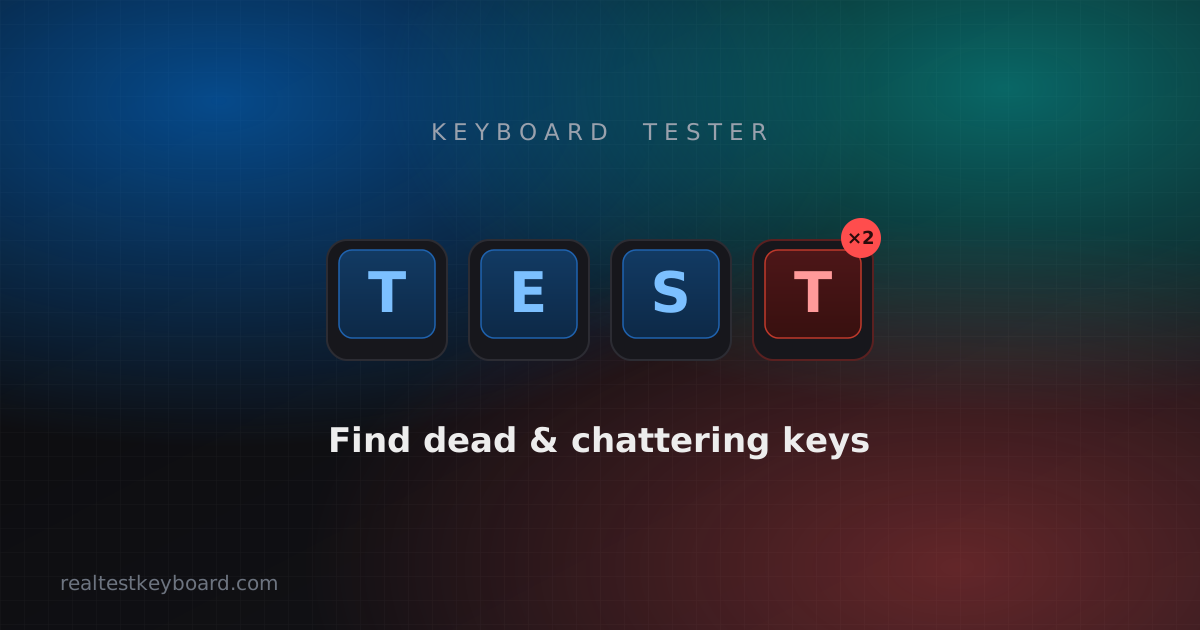
- Watch for dead keys — any physical key that never lights up is a fault.
- Check for chatter. Tap each key a few times and watch the counter; a key that records extra presses, or gets flagged for re-firing, has a worn or dirty switch.
- Test the modifiers and function row. Turn on Capture keys so Tab, Space, the arrows and the F-row register in the browser instead of triggering its own shortcuts.
- Try the number pad if it’s a full-size laptop that has one — those keys see less use and hide faults well.
If every key registers cleanly and nothing chatters, the keyboard is sound. For a deeper walkthrough once it’s yours, see how to check a laptop keyboard is working properly.
Don’t forget the laptop-only keys
Desktop testers cover the letters and numbers, but laptops add hardware that’s easy to forget: the backlight (cycle it through its brightness levels), the Fn key combos for volume, brightness and screen output, and any dedicated media or power keys. A dead Fn key is annoying precisely because you won’t notice it until the day you need to dim the screen on a plane.
MacBook keyboards: a special note
If you’re checking a MacBook — especially older models with the butterfly mechanism — pay extra attention to keys that stick or repeat, which were common complaints on those boards. The browser test behaves identically on macOS: open the tester in Safari or Chrome and press each key on the built-in keyboard. Repeating characters or a mushy, uneven spacebar are the red flags to watch for.
Judge the feel, not just the function
A keyboard can pass every test and still be unpleasant to live with, so spend a moment on the things a tester can’t measure. Type a few real sentences to judge the travel and bounce. Check the trackpad clicks and gestures separately. And look for shine or polish on the most-used keys — heavy wear there hints at a hard prior life, even if everything still works today.
Buying remotely?
If you can’t test in person, ask the seller to run the test and send a photo of the results, or make the sale conditional on a keyboard check the moment it arrives. Either way, run the full test as soon as it’s in your hands, while you still have time to send it back. Catching a bad key on day one is a refund; catching it a month later is a repair bill.
Test every key directly in your browser
Detect stuck keys, key chatter, input latency, and full rollover with our instant, zero-download diagnostic tool.
Start Keyboard Test →