Table of Contents
A keyboard that mostly works can be more frustrating than one that’s clearly broken. A single dead key, a space bar that fires twice, or a shift key that sticks will quietly derail your typing all day. The good news is that you don’t need any special software to find the problem — you can test your keyboard in a couple of minutes right in your browser. This guide explains exactly how to do it and how to recognise every kind of faulty key.
Why you should test your keyboard
Testing tells you three things fast: whether every key registers, whether any key misbehaves, and whether the fault is the keyboard itself or something in software. That matters before you buy a used laptop, after a drink spill, when a game feels unresponsive, or simply when one key has started acting strange. A quick check saves you from guessing — and from replacing hardware that was working fine.
The simplest way to run a full check is with an online keyboard tester. It shows a picture of a keyboard on screen and lights up each key as you press it, so you can see at a glance what’s registering and what isn’t.
What faulty keys actually look like
Before you test, it helps to know what you’re looking for. Most keyboard problems fall into a handful of categories.
Dead keys
A dead key produces nothing when pressed. On a tester it simply never lights up. Dead keys are usually caused by debris under the keycap, a worn switch, or a damaged connection.
Chattering or double-firing keys
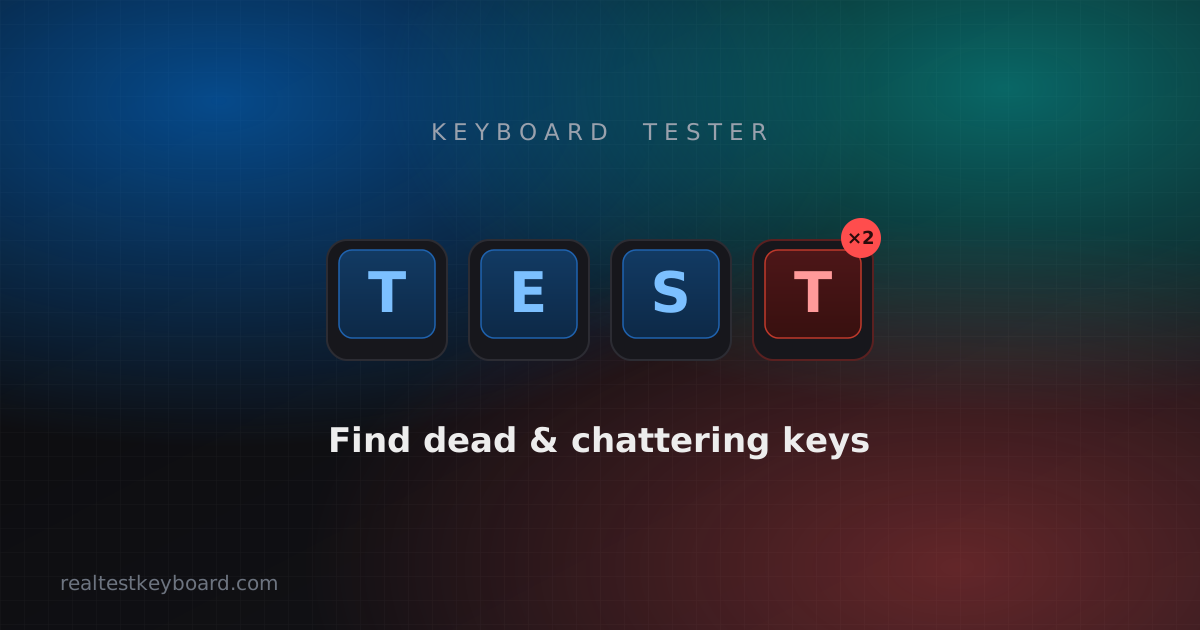
A chattering key registers two or more presses from a single tap — you type “n” and get “nn”. This is one of the most common faults on ageing keyboards. If you suspect it, our guide to fixing a stuck or chattering key walks through the causes and repairs.
Sticky keys
A sticky key stays “down” after you release it, or feels mushy and slow to return. Spilled liquids and dust are the usual culprits.
Ghosting and blocking
Ghosting is when pressing several keys at once causes extra characters to appear or, more often, causes some presses to be dropped. It matters most for gamers, who frequently hold multiple keys together.
Stuck modifiers
A jammed Shift, Ctrl, Alt or Caps Lock can make everything you type behave oddly — capital letters everywhere, or shortcuts triggering by themselves.
How to test your keyboard step by step
Follow these steps for a thorough check that catches all of the faults above.
- Open a keyboard tester. Launch the online keyboard tester in your browser. Nothing installs, and your keystrokes stay on your device.
- Press every key, row by row. Work methodically from the function row down to the space bar. Watch each key light up on screen as you press it. Any key that never lights up is dead.
- Turn on key capture. Enable the capture option so keys like Tab, Space, the arrow keys and the F-row register in the test instead of triggering browser shortcuts.
- Tap each key a few times. Watch the press counter. If a single tap adds two or more counts, or a key gets flagged, you’ve found chatter.
- Test the modifiers. Press and release Shift, Ctrl, Alt and Caps Lock and confirm each one clears when you let go.
- Check the number pad. If your keyboard has one, toggle Num Lock and test those keys too.
If every key registers cleanly, nothing double-fires, and modifiers release properly, your keyboard is healthy.
Common mistakes when testing
A few things trip people up and lead to false conclusions:
- Blaming the keyboard for a software issue. Wrong characters can come from the wrong keyboard language layout, not a hardware fault. Check your system’s input language before assuming the worst.
- Testing through a game or app that remaps keys. Some software intercepts keys. A neutral tester in the browser gives you a clean baseline.
- Forgetting the F-row and arrows. These are easy to skip and are common failure points on laptops.
- Not testing a fresh USB port or cable. On external keyboards, a flaky cable or port can mimic a dead key.
What to do when you find a faulty key
Your next move depends on the fault. A single sticky or chattering key on a desktop board is often fixable with compressed air or by cleaning the switch. A dead key that a cleaning doesn’t cure usually points to a hardware failure. On a laptop, weigh the cost of a keyboard replacement — see how to check if your laptop keyboard is working properly for laptop-specific steps and fixes.
Once you’ve made a repair or a change, run the test again to confirm the key now registers cleanly. Re-testing is the only way to be sure the fix worked.
Keep your keys sharp
Testing your keyboard isn’t only for troubleshooting. If you’re working on your typing, it pays to know your equipment is reliable before you measure yourself — a chattering key will wreck your accuracy score. When you’re confident every key works, try a typing speed test to see how you’re doing, and browse the rest of the blog for more keyboard and typing guides.
A two-minute keyboard test is one of the highest-value checks you can run on any computer. Do it whenever a key feels off, and you’ll spend a lot less time fighting your own hardware.
Test every key directly in your browser
Detect stuck keys, key chatter, input latency, and full rollover with our instant, zero-download diagnostic tool.
Start Keyboard Test →