Table of Contents
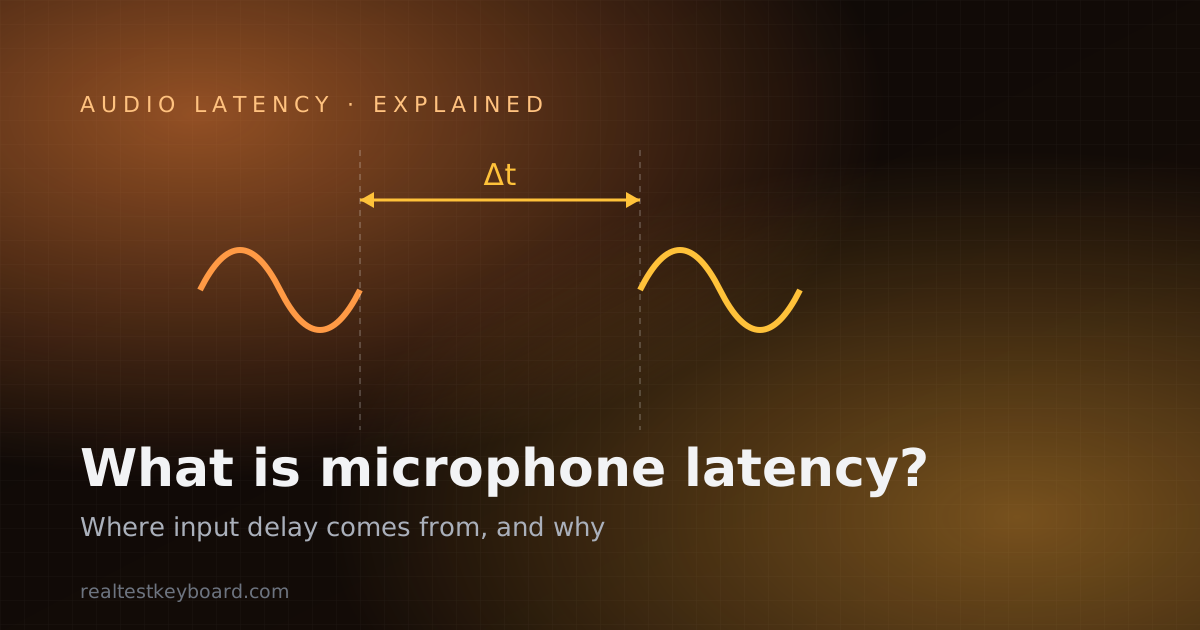
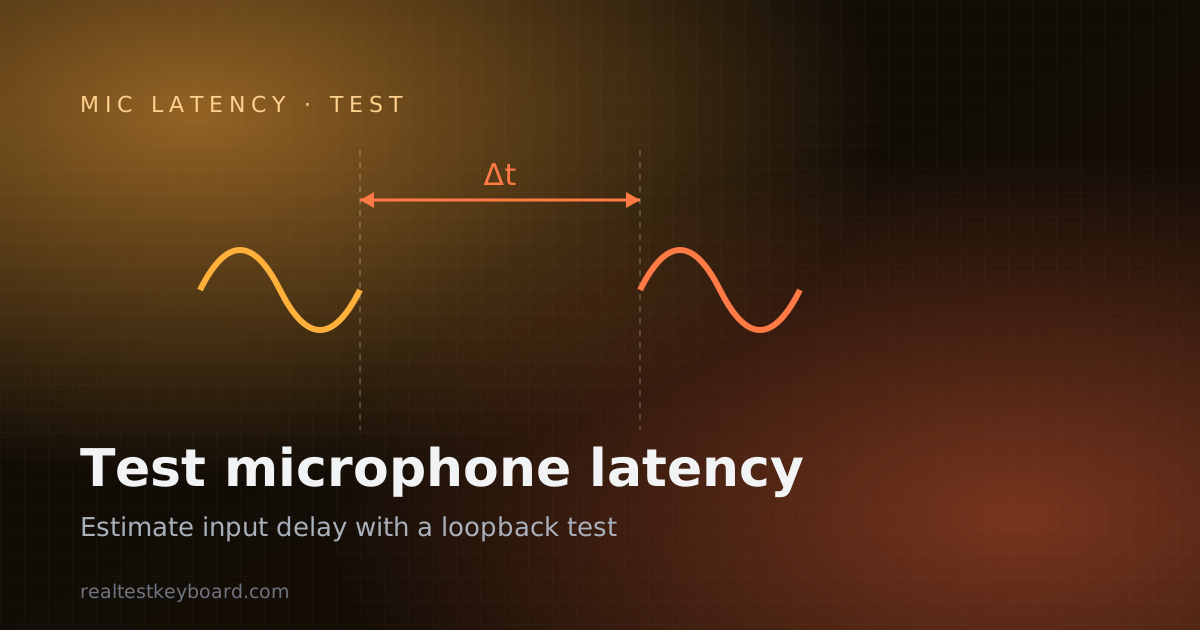
If your voice arrives a beat late on a call, or your recorded vocal drifts out of time with the backing track, the delay you’re fighting is microphone latency — the lag between sound entering the mic and the moment your computer can do something with it. You can’t fix what you can’t measure, so the first useful step is a microphone latency test that puts a number on it. A browser can estimate that number by sending audio out and timing how long it takes to come back, all without installing anything. This guide explains how that estimate works, how to run one, and how to read the result honestly.
What the test actually measures
A microphone latency test measures round-trip time: audio leaves your system, is captured by the microphone (or looped internally), and returns to the software that timed it. The gap between “sent” and “heard again” is the round-trip latency. Your one-way input latency — mic to app — is roughly half of that path, though the two aren’t perfectly symmetric.
It’s important to be upfront about precision. A browser cannot reach into your sound card and read a hardware latency register. Instead it uses the Web Audio API to schedule a signal and timestamp its return, which produces a solid estimate rather than a microsecond-exact figure. The browser’s own audio buffering sits inside that measurement, so the number reflects the whole browser-plus-OS-plus-device path, not the microphone in isolation. That’s still genuinely useful — it tells you what kind of delay you’re living with and lets you compare setups — but treat it as an estimate, not a lab reading.
How a browser loopback test works
The mechanism is a loopback. The microphone latency test plays a short, sharp reference sound through your output and listens on your input at the same time, using Web Audio timing to mark when the signal was emitted and when it was detected coming back. The difference is the round-trip estimate.
There are two common ways to close that loop:
- Acoustic loopback — your speakers play the tone and your microphone physically picks it up through the air. This captures the entire real-world path, including speaker and mic conversion, but it needs your mic to actually hear the speaker, so it works best with a quiet room and speakers turned up rather than headphones.
- Device loopback — the signal is routed back through the audio stack without going through the air. This isolates the digital/driver path and removes room acoustics from the number.
Either way, the browser handles capture through getUserMedia, so the first time you run it the page will ask for microphone permission. Nothing is uploaded; the timing and audio stay on your device.
Running the test, step by step
- Pick a quiet moment. Background noise can trip acoustic detection and skew the estimate. Close media that’s playing and mute notifications.
- Choose your real device. If you have several inputs and outputs, select the microphone and speaker you actually use — Bluetooth earbuds and a wired interface will produce very different numbers.
- Grant microphone access. Open the microphone latency test and allow the permission prompt. If it’s blocked, clear the site permission and reload.
- Set the volume so the mic can hear the tone. For an acoustic loopback, speakers up and mic close enough to detect the reference sound cleanly. For a device loopback, follow the on-screen routing.
- Run several passes. A single reading can be thrown off by one noisy sample. Run it a handful of times and look at the range, not one lucky result.
- Note the conditions. Record which devices and settings produced the estimate so you can compare fairly after a change.
If the test can’t detect your microphone at all, confirm the mic works first with a plain microphone test, which shows a live input level so you can rule out a dead or muted device before chasing latency.
What moves the number
Latency isn’t one thing; it’s a stack of small delays that add up. Understanding the contributors tells you what to change if the estimate comes back high.
Buffer size. This is usually the biggest lever. Audio is processed in blocks, and a larger buffer means the system waits for more samples before handing them over — more delay, but fewer dropouts. A smaller buffer cuts latency at the risk of glitches if the CPU can’t keep up. Many of the differences you’ll see between apps come down to buffer settings.
Sample rate. At a higher sample rate, a buffer of the same number of samples represents less time, which can lower latency — but the relationship depends on how the whole chain is configured, so it’s not a guaranteed win.
Wired vs Bluetooth. Wireless audio adds real, unavoidable delay. Bluetooth has to encode, transmit, and decode the audio, and the codec in use changes how much delay that adds. Wired connections skip that entirely, which is why they estimate far lower. If your test result looks large, a Bluetooth link is a prime suspect.
The OS audio path. Windows, macOS, and Linux each route audio through their own mixing and driver layers. Low-latency driver models exist precisely to shorten this path. The browser sits on top of whatever the OS provides, so the platform’s audio stack sets a floor the test can’t go beneath.
System load. A busy CPU forces larger safety buffers and can inflate the estimate. Testing on a quiet machine gives a cleaner baseline, much like reading a display’s true frame rate needs a quiet system in the display FPS test.
For the deeper “where does each millisecond come from” picture — capture buffers, the OS stack, monitoring paths — see what microphone latency is and why it matters, which sets up the concepts this test measures.
Interpreting your estimate
Compare, don’t obsess over the absolute figure. Because the browser’s buffering is baked into the reading, the most valuable use of the test is relative: run it wired, then over Bluetooth, and watch the gap. Run it before and after changing a buffer setting to see the effect. A consistent, repeatable estimate across passes is more trustworthy than a single low outlier.
Also match the target to the task. Real-time monitoring — hearing yourself as you sing or speak — is where even modest delay becomes distracting, because your ears notice the echo against your own voice. For a recorded podcast or an asynchronous voice message, the same latency is invisible, since the delay is corrected in editing or simply doesn’t matter. The test gives you the number; the use case decides whether it’s a problem. If your latency concern is really about audio and video drifting apart during playback, the video playback test covers the media side of sync.
Frequently asked questions
Is a browser microphone latency test accurate?
It’s an accurate estimate, not a hardware-exact measurement. The browser times a round-trip signal through the Web Audio API, and its own buffering is part of what gets measured. That makes it reliable for comparing setups and spotting big offenders like Bluetooth, but you shouldn’t treat the millisecond figure as a precise, absolute spec.
Why is my Bluetooth microphone latency so high?
Bluetooth has to compress, transmit wirelessly, and decompress the audio, and that process adds delay that a wired connection doesn’t. The exact amount depends on the codec negotiated between your device and computer. If low latency matters — gaming, live monitoring, music — a wired mic will almost always test dramatically better.
Do I need to install software to test mic latency?
No. The test runs entirely in the browser using standard web audio features. It asks for microphone permission, times the loopback locally, and uploads nothing.
My result keeps changing between runs — is something wrong?
Some variation is normal, because system load, background noise, and how cleanly the mic detects the reference tone all shift slightly each pass. That’s why you run several and read the range. Wildly different numbers usually point to noise interfering with detection or the CPU being busy — quiet the environment and try again.
The test can’t hear my microphone. What now?
First confirm the mic itself works with a basic microphone test that shows a live input meter. If the meter moves, the device is fine and the issue is routing or volume — for an acoustic loopback, raise the speaker volume so the mic can actually pick up the tone, and pick the correct input and output devices.
Putting a number on your input delay turns a vague “it feels laggy” into something you can act on. Run the microphone latency test across your wired and wireless setups, adjust buffer sizes where your software allows, and keep the estimate as a before-and-after benchmark whenever you change your audio chain.
Test every key directly in your browser
Detect stuck keys, key chatter, input latency, and full rollover with our instant, zero-download diagnostic tool.
Start Keyboard Test →